Here are the sections inside a Course Home Page.
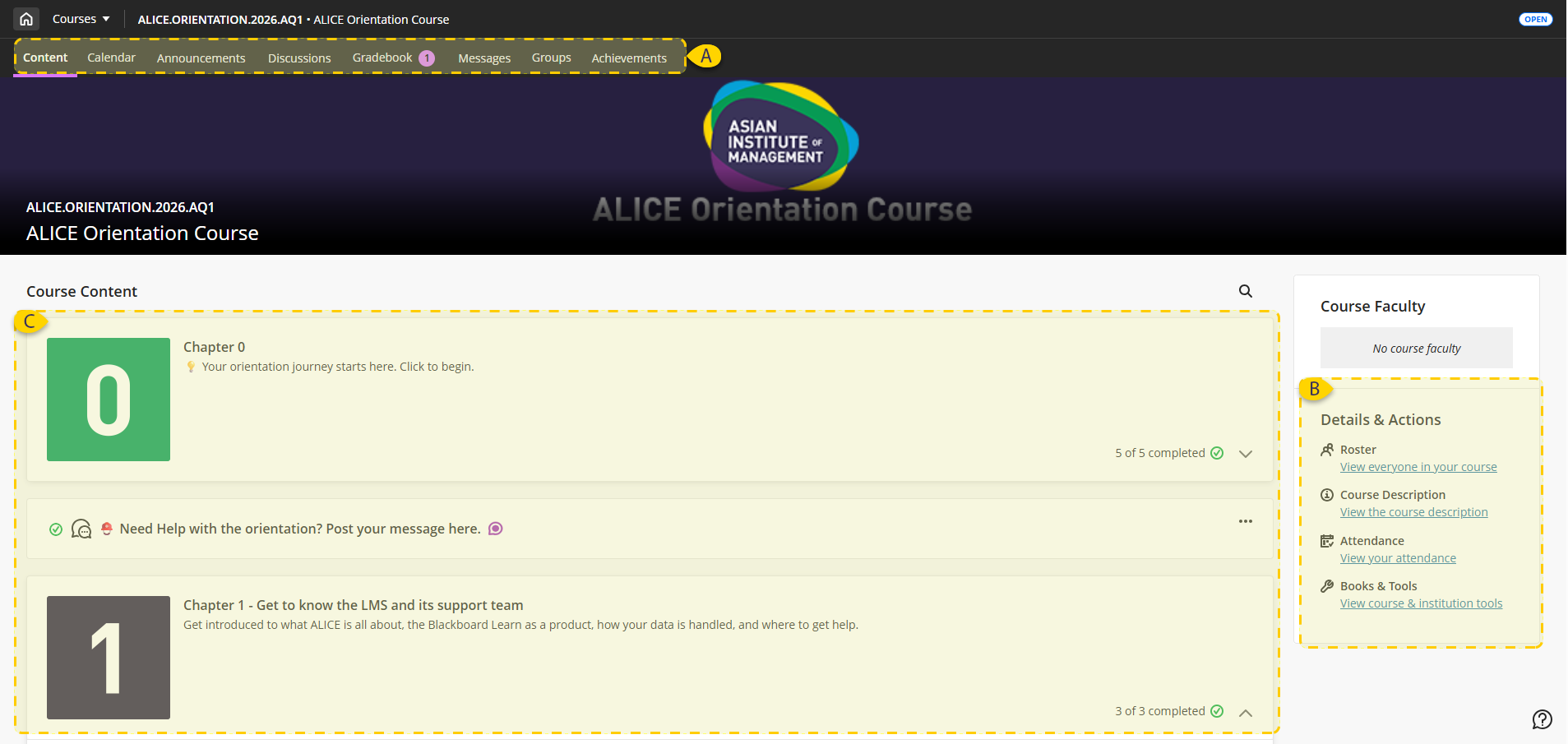
A. Navigation Bar

Switch between frequently used tools in one step. Select the Content, Calendar, Announcements, Discussions, Gradebook, Analytics, Messages, and Groups tabs to easily access these tools.
- Calendar - Check your calendar for deadlines and submissions
- Announcements - Get an overview of course updates.
- Discussions - Engage in conversations (including graded discussion boards).
- Gradebook - Review your current grade standing.
- Messages - You can view your messages in this course here.
- Groups - You can view the groups you’ve been assigned to in this course here.
- Achievements- Earn digital badges and official certificates automatically as you complete course milestones, master skills, and hit target grades.
For more information, you may refer to this link:
➡ https://help.blackboard.com/Learn/Student/Ultra/Getting_Started/Navigate_Inside_a_Course
B. Details & Actions
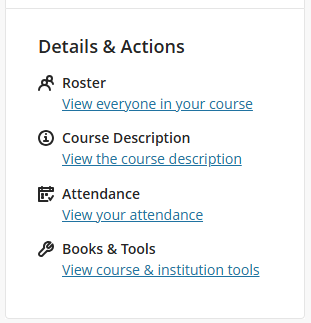
View course information and tools with these options:
- Roster - All course members appear in the roster. You can't remove yourself.
- Course Description - For internal purposes. Official Course description can be found in the Course Outline.
- Attendance - If your instructor uses the attendance, you can access your records.
- Books & Tools - Displays tools available in your course and the institution.
C. Course Content
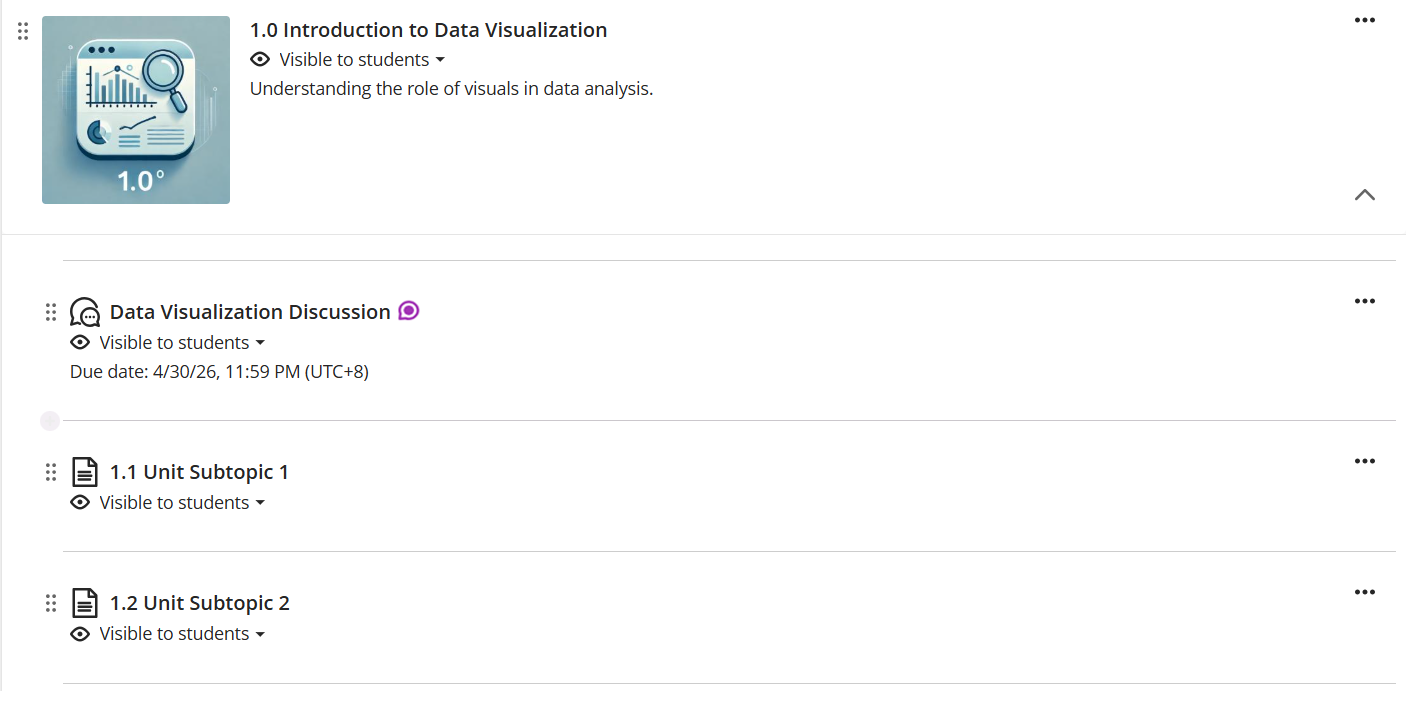
Course content displays on the main page, expanding when you select a folder or learning module. Clicking an assignment, document, or link opens it in a slide-out panel; simply close the panel to return to the main view. You can track your completed tasks through progress tracking and search for content by title using the magnifying glass icon on the right.
New Activity
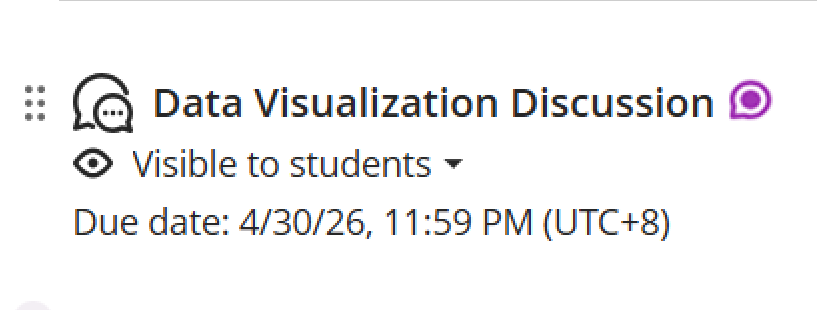
An activity icon, which resembles a purple speech bubble, appears when a new activity occurs in a course conversation for assignments, tests, and documents. The activity icon also appears to indicate new discussions.
Next, check out the Content Pages, as you will be seeing them all throughout your stay in AIM.
Was this article helpful?
That’s Great!
Thank you for your feedback
Sorry! We couldn't be helpful
Thank you for your feedback
Feedback sent
We appreciate your effort and will try to fix the article